
How to recover deleted files from an external hard drive or USB stick on a Mac
Updated 13 October 2026
You can often recover deleted files from an external hard drive or USB stick on a Mac, even after emptying the Trash. Spinning hard drives and most USB sticks keep deleted data until something new is written over it. External SSDs are different. Many of them erase deleted data automatically, which makes recovery unlikely. Here's how to tell which you have and what to do.
Download Found Again free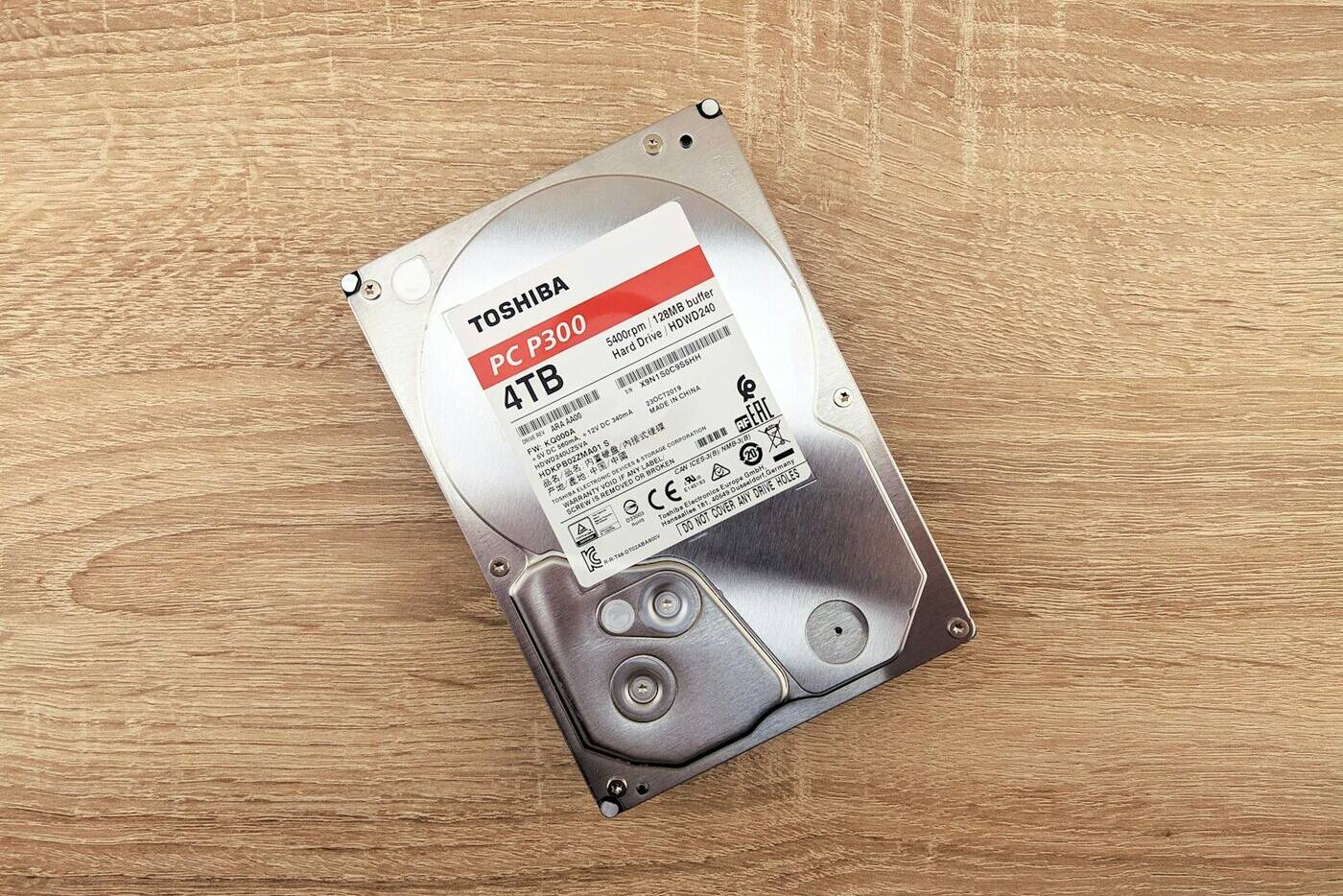
First, check the drive's own Trash
When you delete a file from an external drive in Finder, macOS moves it to a hidden folder called .Trashes on that same drive. It only appears in the Trash in your Dock while the drive is connected. That catches people out. Unplug the drive, and its deleted files seem to vanish from the Trash.
- Plug the drive back in.
- Click the Trash in the Dock.
- If your files are there, select them, Control-click and choose Put Back.
If you emptied the Trash while the drive was connected, the files were deleted from the drive itself. On a drive formatted as exFAT or FAT32, which includes most USB sticks, their file records are often still there, so recovery can bring them back with their original names.
Stop writing to the drive
- Don't copy, download or save anything to the drive until you've recovered what you need.
- If the drive is your Time Machine disk or a backup target, pause backups to it.
- Hold off on Disk Utility's First Aid. Repairs write to the drive.
- If a hard drive is clicking, grinding or keeps disconnecting, stop using it. A drive that's failing mechanically can get worse with every hour it runs, and that's a job for a professional recovery service.
Hard drive, USB stick or SSD? Why it matters
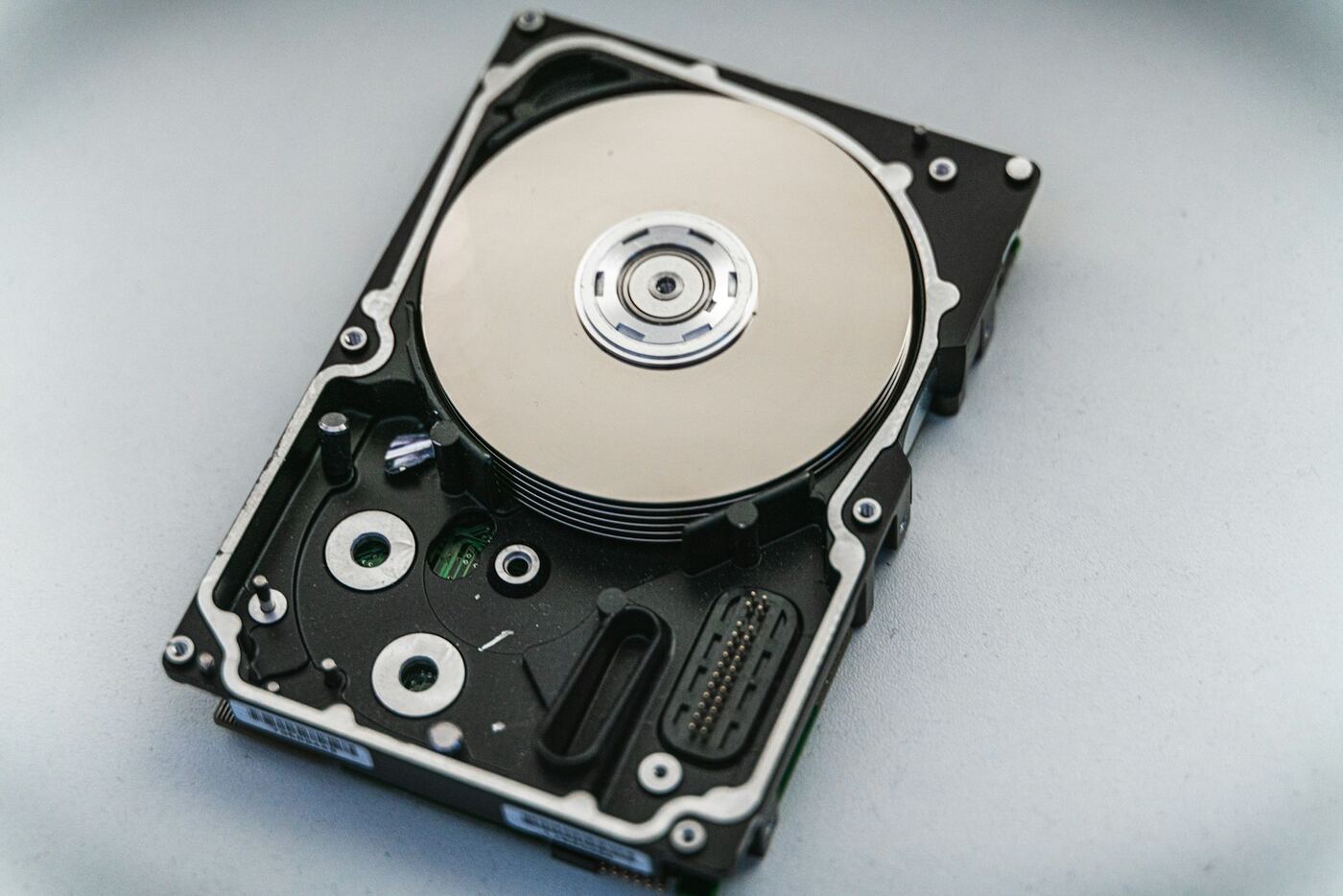
Solid-state drives support a command called TRIM. When files are deleted, the computer tells the SSD which blocks are no longer needed, and the SSD erases them in the background. Once that happens, the data is gone. Hard drives don't do this, so their deleted data stays until it's overwritten.
| Drive | Format | Odds | Why |
|---|---|---|---|
| Spinning hard drive (HDD) | Any | Good | No TRIM. Deleted data stays until it's overwritten. |
| USB flash drive or memory card | exFAT or FAT32 | Good | macOS doesn't TRIM exFAT or FAT32. |
| External SSD | exFAT or FAT32 | Worth a scan | macOS doesn't TRIM exFAT or FAT32. Another computer might have. |
| External SSD by Thunderbolt or USB4 | APFS or Mac OS Extended | Poor | macOS usually trims these, so freed space is erased. |
| External SSD by USB | APFS or Mac OS Extended | Uncertain | Depends on the drive and its enclosure. |
| Encrypted drive | APFS (Encrypted), BitLocker and similar | Can't be scanned | The raw data is scrambled without the key. |
To see how a drive is formatted, select it in Finder and choose File › Get Info, or open Disk Utility. To check TRIM on a Thunderbolt or USB4 SSD, hold the Option key, choose Apple menu › System Information, and look under NVMExpress for "TRIM Support".
exFAT, FAT32 and NTFS vs APFS and Mac OS Extended
Found Again recovers files in two passes. The first reads the file records of exFAT, FAT32 and NTFS drives. Deleted files found this way usually come back with their original names, folders and dates, and this pass works for any type of file. On NTFS drives from Windows PCs, files emptied from the Windows Recycle Bin get their original name and folder back too.
The second pass, the deep scan, reads every sector of the drive and recognizes files by their contents. It works on any external drive whatever its format, including Mac drives formatted as APFS or Mac OS Extended. Files found this way come back without their original names. Photos are named by the date they were taken.
The deep scan recognizes:
- Photos: JPEG, HEIC, PNG, GIF, TIFF, WebP, BMP and PSD, plus RAW from Canon, Nikon, Sony, Fujifilm, Olympus/OM System, Panasonic, Pentax and Samsung, and DNG.
- Video: MOV, MP4, M4V, 3GP, AVI, MKV and WebM.
- Audio: MP3, WAV, M4A and FLAC.
- Documents: PDF, Word, Excel and PowerPoint (old and new formats), Pages, Numbers, Keynote and EPUB, plus ZIP archives.
So for a USB stick or drive full of documents, exFAT, FAT32 or NTFS is the best case. For an APFS or Mac OS Extended drive, expect the files the deep scan recognizes, without their names.
How to recover deleted files from an external drive with Found Again
- Connect the drive directly to your Mac if you can, rather than through a hub.
- Open Found Again. The drive appears in the list. Found Again lists external drives, USB sticks and memory cards. It won't scan your Mac's internal drive (here's why, and where to look instead).
- Click Scan and enter your Mac's password. macOS opens the drive read-only. Found Again unmounts it while scanning, so it disappears from Finder until the scan ends.
- Browse the results as they arrive. Files from the first pass appear quickly. The deep scan keeps adding more. Filter by Photos, RAW, Videos, Audio or Documents.
- Recover to a different disk. Choose a folder on your Mac or another drive. Found Again won't save recovered files onto the drive you're recovering from.
Big drives take time. The deep scan reads the whole drive, at very roughly 1 to 3 minutes per 10 GB over USB 3, so a 1 TB drive can take several hours. You can recover files as soon as they appear.
If the drive has bad sectors, Found Again keeps going. It fills the unreadable parts of a file with blanks and lists those files in a note saved with your recovered files.
Questions
Can I recover files after emptying the Trash on an external drive?
Often, yes. Emptying the Trash deletes the files from the drive's hidden .Trashes folder, but on a hard drive or USB stick the data stays until it's overwritten. On exFAT and FAT32 drives the files often come back with their names.
Why can't anything be recovered from my external SSD?
If it's formatted as APFS or Mac OS Extended and connected by Thunderbolt or USB4, macOS most likely trimmed it. The SSD then erased the deleted files' space, and no software can bring that back.
Can Found Again recover files from an NTFS drive used with Windows?
Yes. Found Again reads NTFS file records, so deleted files usually come back with their original names and folders, including files emptied from the Windows Recycle Bin. Compressed or encrypted NTFS files are the exception. The deep scan then looks for anything the records no longer point to.
Is it safe to scan a drive with bad sectors?
Found Again only reads the drive and skips past sectors it can't read. If the drive is making unusual noises or keeps disconnecting, though, stop and contact a recovery service, since running a failing drive can make it worse.
Do I need to format the drive before scanning?
No, and please don't. Formatting makes recovery harder. Scan the drive as it is, recover your files to another disk, and only then format it if you want to.