
How to use Found Again
Updated 13 October 2026
Found Again gets deleted photos, videos and files back from memory cards, USB sticks and external drives. There's nothing to set up and no account to create. Here's the whole process, from plugging in the card to having your photos back on your Mac.
-
Download and open Found Again
Download Found Again, open the file, and drag Found Again into your Applications folder. It's signed and notarized by Apple, so it opens like any other app. It needs macOS 14 Sonoma or later, and works on Apple silicon and Intel Macs.
-
Plug in the card and click Scan
Put the card in your Mac's SD slot or a card reader, or plug in the USB stick or drive. It appears in the list by itself, named after the camera that used it. Click it to start.
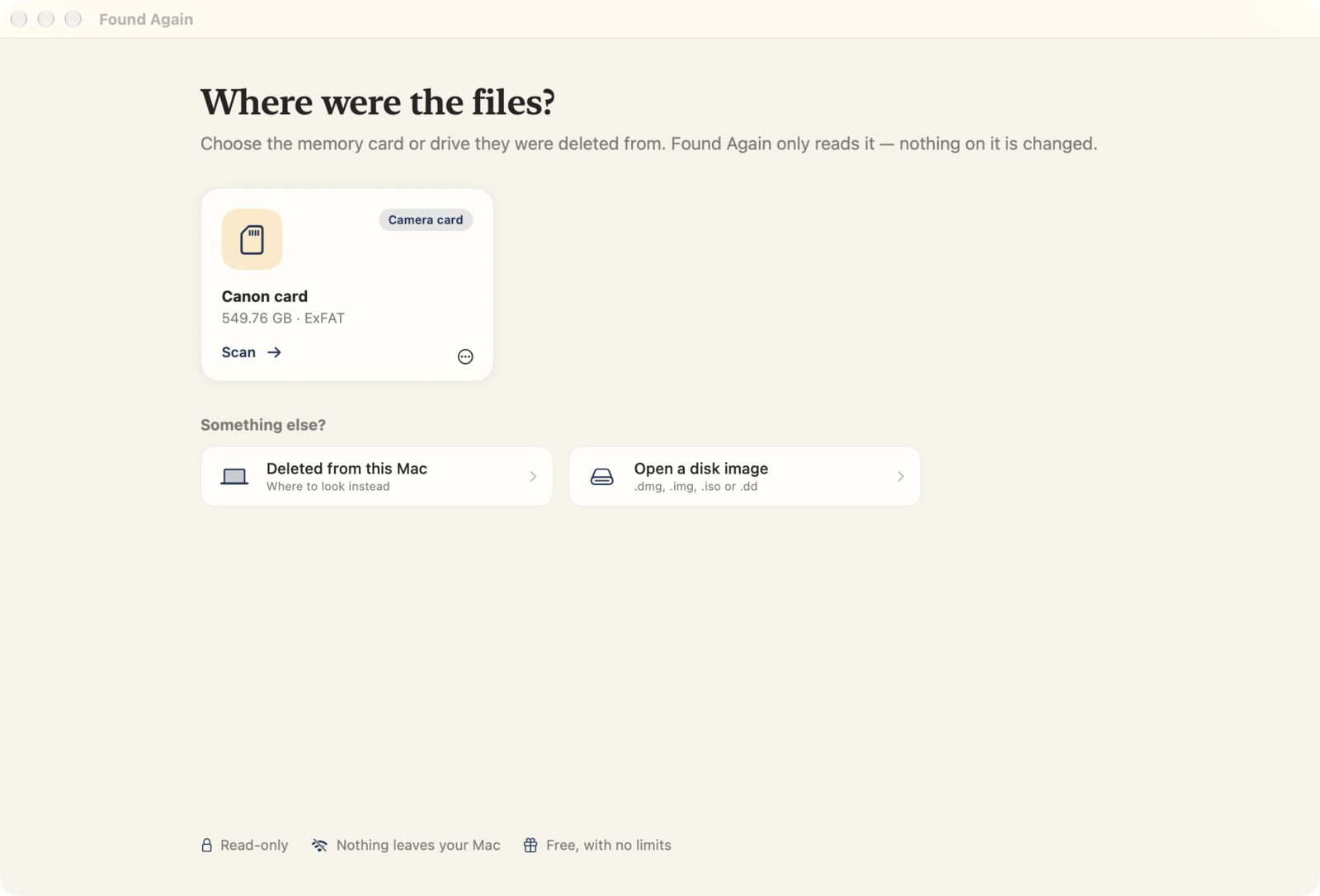
Connect the camera itself with a cable and it won't show up here. Take the card out and use a card reader instead. macOS then asks for your Mac's password. That's macOS's own password box, and it lets macOS open the card read-only for Found Again. You're asked once per scan. The very first time, macOS may also ask you to allow access to removable volumes, and Found Again shows you where to click.
-
Watch your files appear
Deleted files usually show up within seconds, with their original names and grouped by the day they were taken. A deeper search then reads every part of the card to find anything else, and new finds keep appearing while you look.
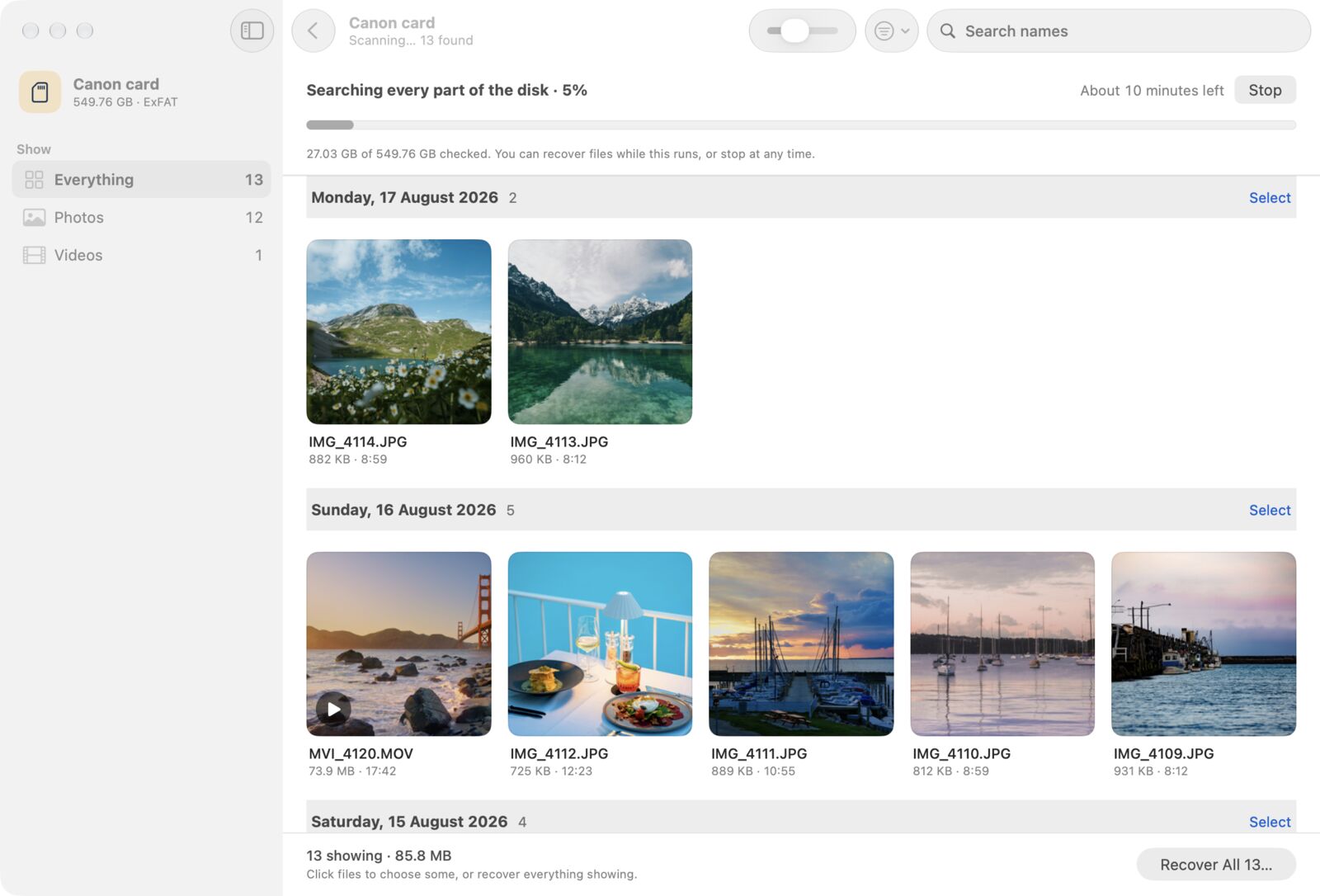
You don't have to wait for the deep search to finish. You can recover anything that's already showing. The card disappears from Finder during the scan. That's on purpose: Found Again keeps macOS from writing its own files onto the card until you're done.
-
Pick the ones you want
Click photos to select them, or use Select next to a day to take the whole day. The sidebar narrows the list to photos, RAW files, videos or documents, and the search box finds files by name. Double-click a file, or press Space, to see it full size before you recover it. Videos play right there.
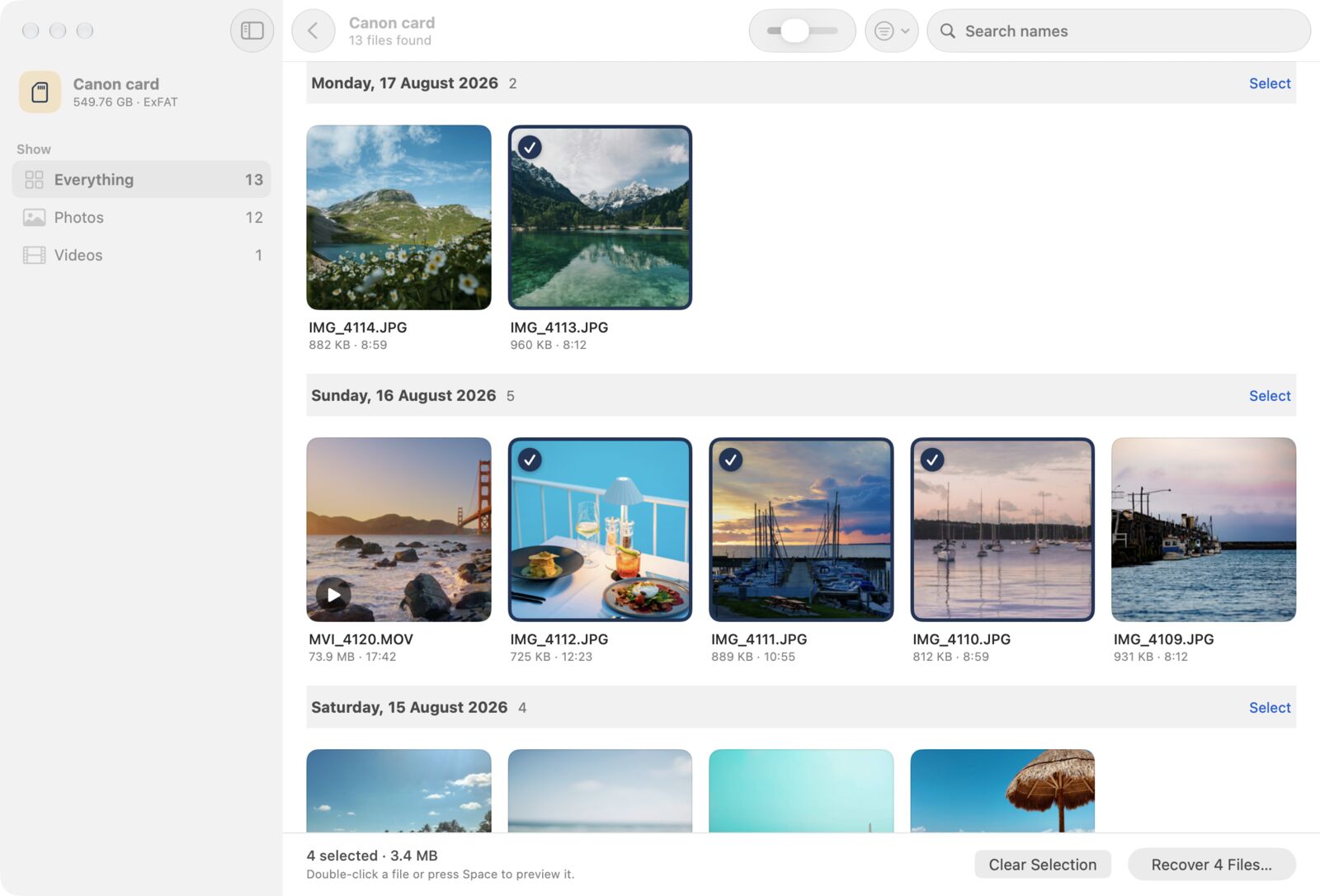
Not sure what you need? Select nothing, and Recover takes everything that's showing. -
Recover them to your Mac
Click Recover. Found Again suggests a dated folder inside Pictures, or you can choose another place on your Mac. It won't save anything back onto the card you're recovering from.
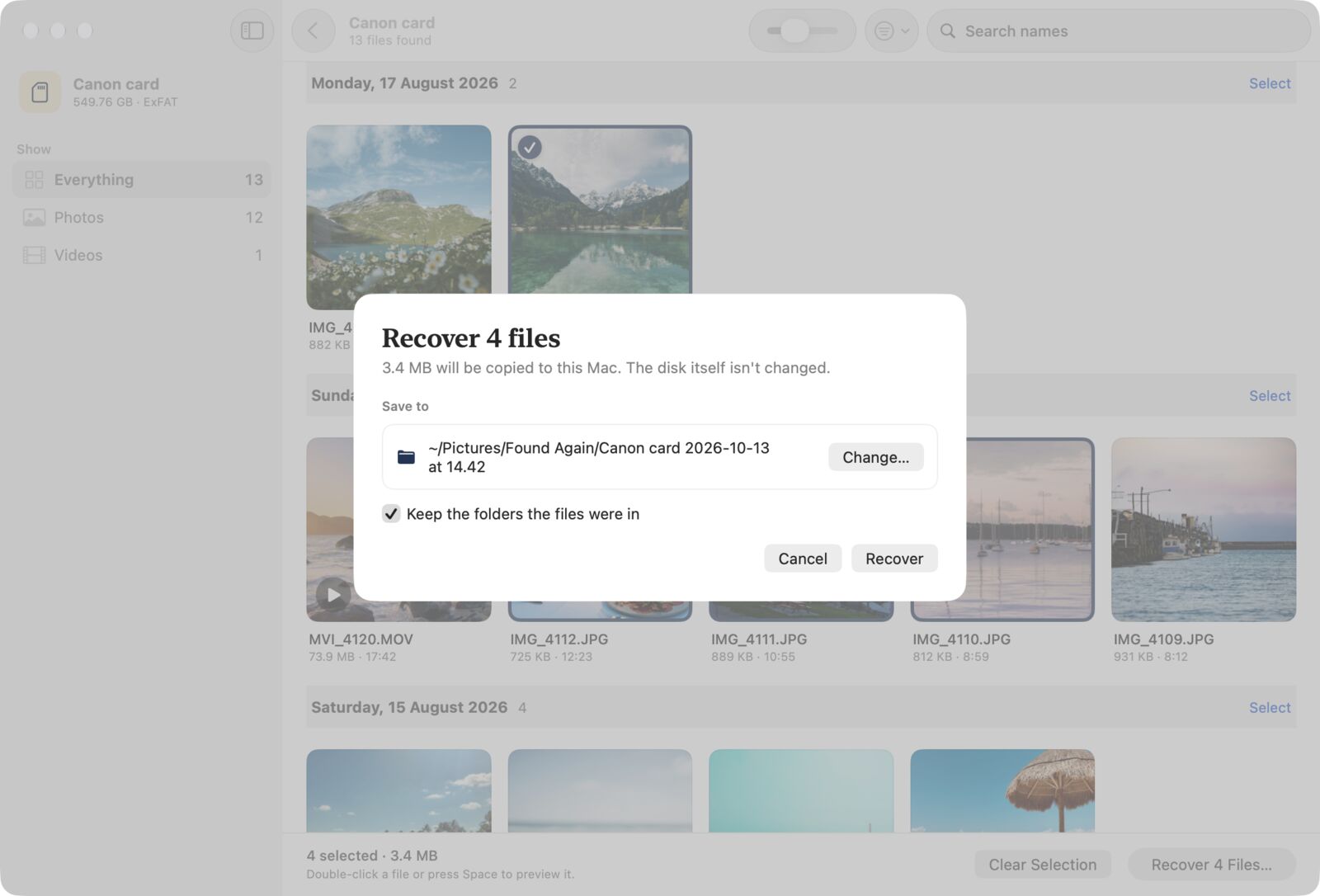
Files keep their original dates, and you can keep the folders they were in on the card. When it's done, click Show in Finder to see your photos. That's it.
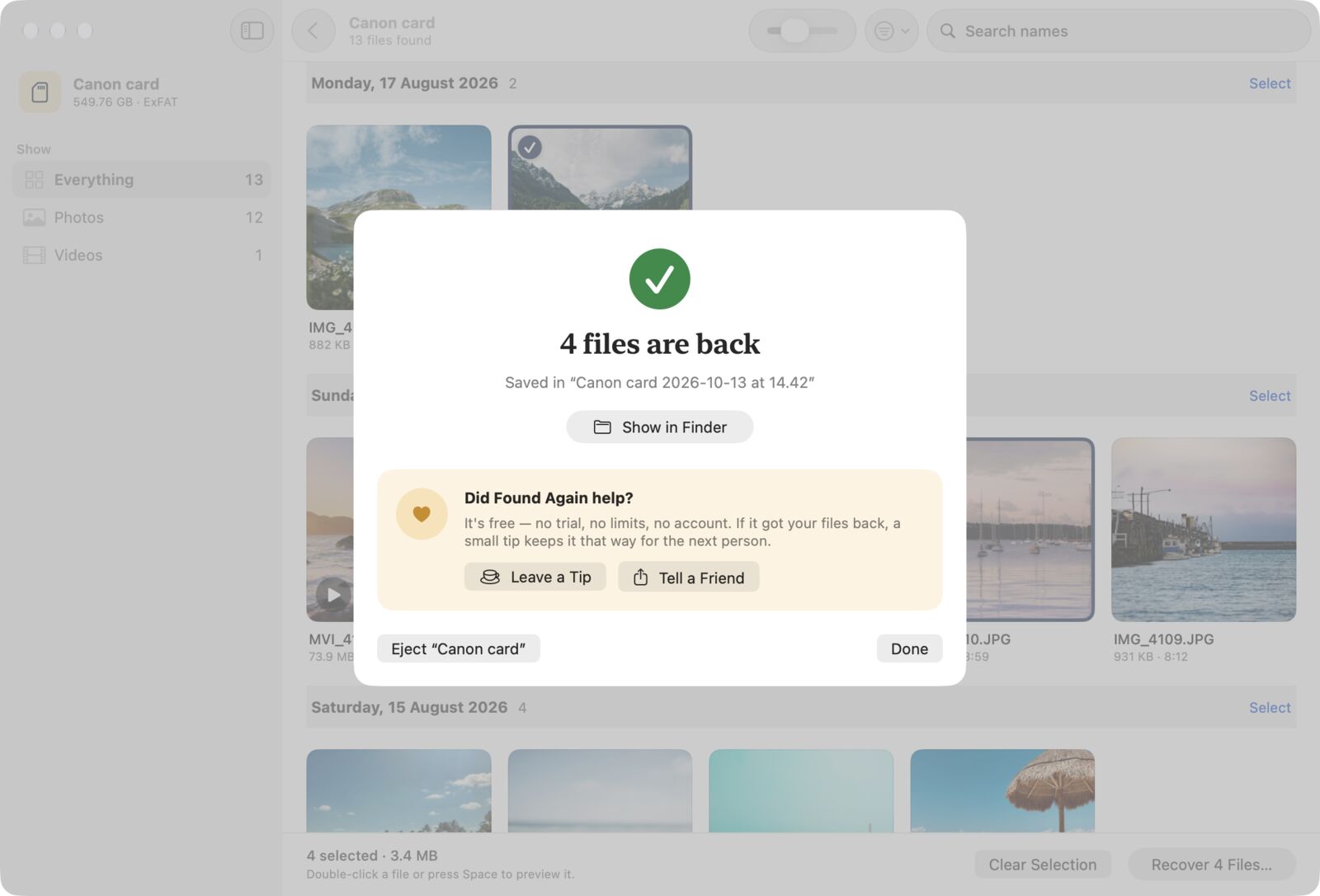
If Found Again helped, you can leave a tip here. It's the only time it asks, and you can ignore it.
Good to know
- Nothing on the card changes. Found Again only reads it, so you can scan as many times as you like.
- Files marked Partial or Damaged were partly overwritten by newer files. They may open with missing pieces, or not at all. Use the View Options menu to hide damaged files.
- Files without their names were found by the deep search after their record was gone. Found Again names them by the date and time they were taken, plus the camera model.
- A card that's struggling can be copied once with Save a Copy of This Disk, from the menu on its card. You can then scan the copy without touching the card again.
- Deleted from your Mac itself? The Mac's own drive can't be scanned for deleted files. Our guide to files deleted from a Mac shows where to look instead.
For more detail on your situation, see the guides to SD card recovery, formatted cards, external drives and USB sticks, and your camera.
Questions
Do I need to wait for the scan to finish?
No. Files with their names usually appear within seconds, and you can recover them straight away. Leave the deep search running if something you're looking for hasn't appeared yet.
Why does Found Again ask for my password?
macOS only lets apps read a card's raw contents with an administrator's permission. The password goes to macOS, not to Found Again, and it only lets Found Again read that one disk.
Where do the recovered files go?
To a folder on your Mac. Found Again suggests a dated folder inside Pictures › Found Again, and you can pick any other folder that isn't on the card you're recovering from.
Can I stop and come back later?
Yes. Stop the scan whenever you like, and scan the card again later. Because nothing on the card was changed, you'll find the same files again.